Add rtfx to Claude, publish, share, and see who opened it
Every screenshot below is the real thing — Claude Desktop and claude.ai show the same screens. About three minutes end to end.
https://mcp.rtfx.pro/mcp
A. Connect B. Publish C. Share D. See who opened it
AConnect
-
Step 1. In Claude, open Customize → Connectors (also under Settings), click + Add, then Add custom connector.

-
Step 2. Name it
rtfx, pastehttps://mcp.rtfx.pro/mcp, and click Continue.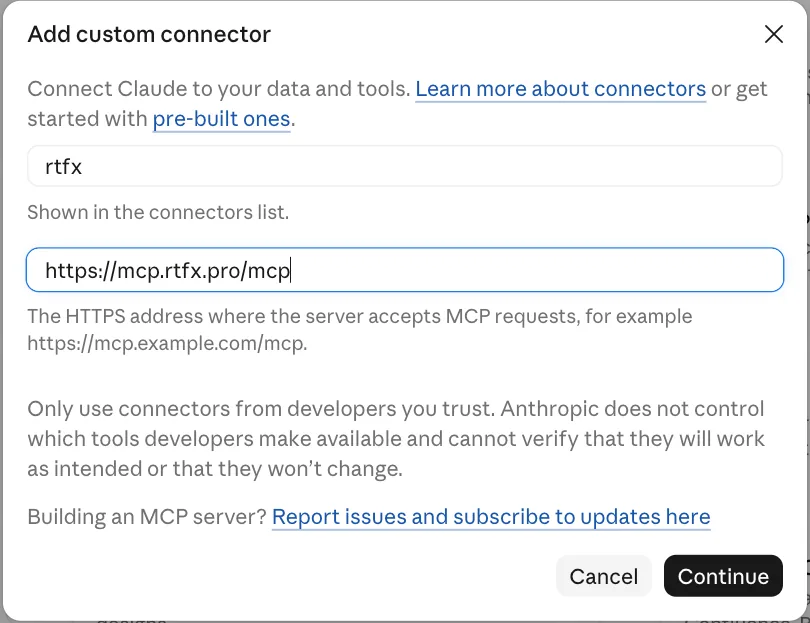
-
Step 3. Leave the detected defaults — Sign in now and Use Claude's published identity — and click Add at the bottom.

-
Step 4. Click Connect.

-
Step 5. Sign in to rtfx with the code we email you (first time only), check what Claude is asking for, and click Allow access. Allow Manage access and delete artifacts if you want Claude to share and delete from chat.

-
Step 6. Connected. Each rtfx tool can stay on Needs approval (Claude asks every time) or be set to always allowed.

BPublish
-
Step 7. Ask for what you want and say publish it with rtfx. Claude shows the publish call; click Allow once.
“Make a one-page HTML summary of Acme's Q3 … Then publish it with rtfx as a private link.”

-
Step 8. Claude replies with your private link. Only you can open it until you share it.

-
Step 9. Open the link: that's your artifact, with Share in the top-right corner. Publish again to the same name and the same link shows the new version.

CShare
-
Step 10. On the Share page, add people by email — Viewer can open it, Editor can also publish new versions — or create a share link for someone without an account: name it for who it's for, pick an expiry, and copy it once. Extend, rename or revoke it any time.
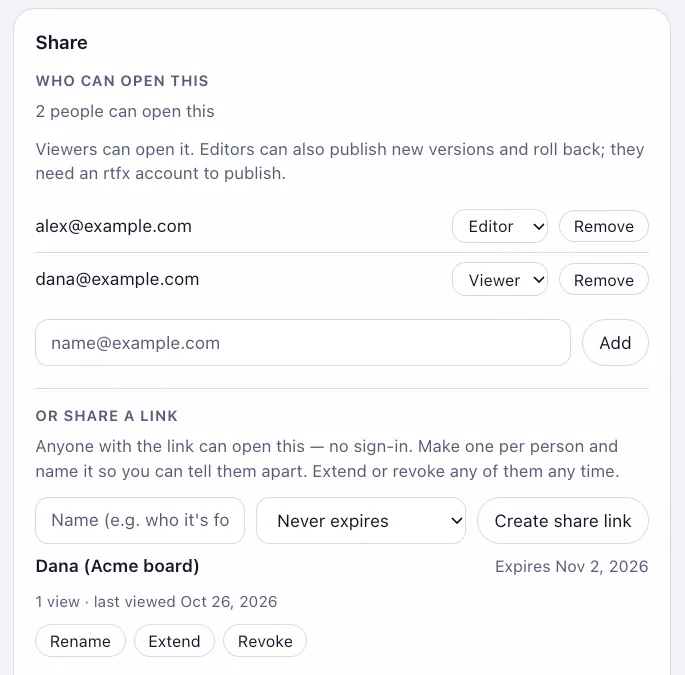
Or just ask Claude: Share it with dana@acme.com.
-
Step 11. What Dana sees: the page, straight away — no sign-in, no account.

DSee who opened it
-
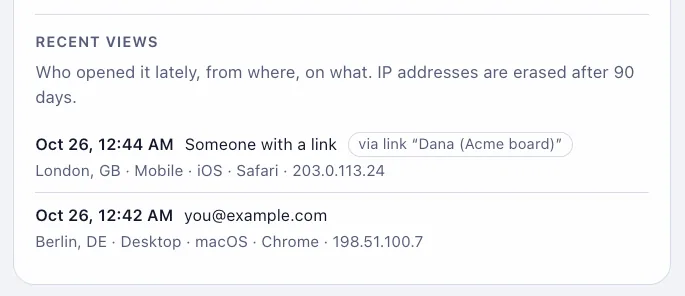
Step 12. Recent views, on the same Share page: who opened it, when, through which named link, and on what device. IP addresses are erased after 90 days.